After completing this unit, you’ll be able to:
To ensure that you're dealing with the right information you need a clear view of data at every stage of the transformation process.
Data inspection meets this need: it is the act of viewing data for verification and debugging purposes, before, during, or after a translation.
In FME Desktop, you can use two data inspection tools: in Workbench via the Visual Preview window, or in a complementary application called the FME Data Inspector. In this module we will discuss both.
FME data inspection tools let you view data in any supported format. They are used primarily to preview data before translation or to verify it after translation. You can use them to set up and debug workspaces by inspecting data during the translation.
FME data inspection tools are not designed to be full-featured spreadsheet, database, or mapping applications. They have no analysis or editing functionality, and the tools for symbology modification or printing are intended for data validation rather than producing output.
A number of different aspects of data may be inspected, including the following:
FME Data Inspector is a standalone application for inspecting data.
Starting FME Data Inspector
To start the Data Inspector, locate it in the Windows start menu:

Major Components of FME Data Inspector
When FME Data Inspector opens a dataset, it looks something like this:
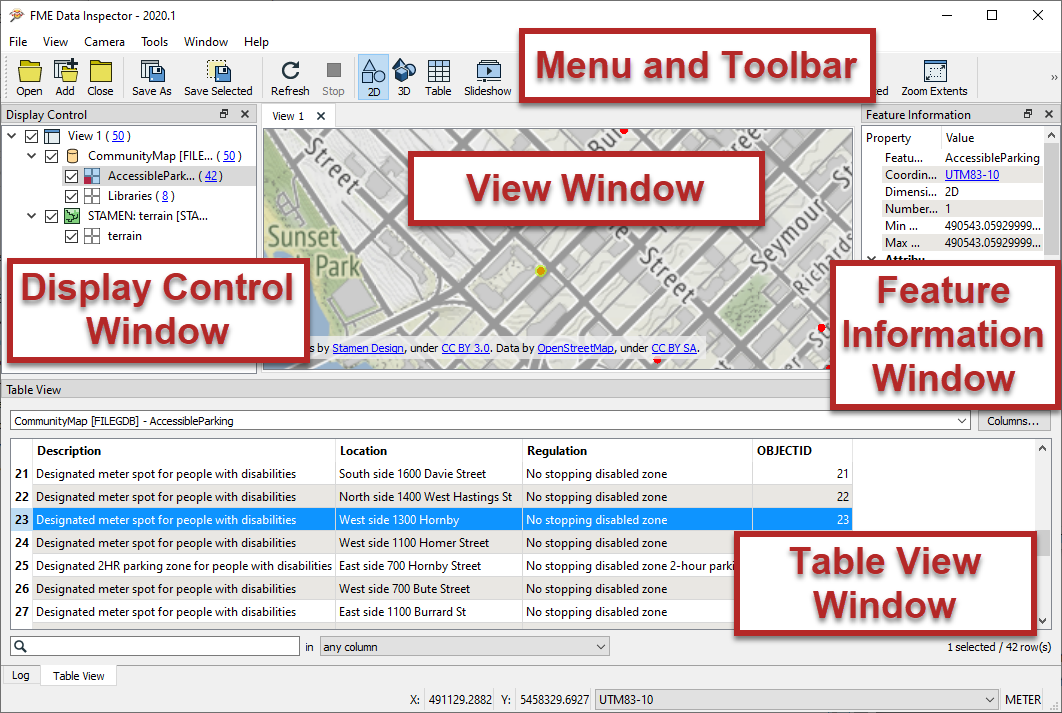 Map tiles by Stamen Design, under CC-BY-3.0. Data by OpenStreetMap, under CC-BY-SA.
Selecting Features
You can select a feature in the Table or Graphics view to learn more about it.

The Select tool button is a toggle. By default it is active when you start the FME Data Inspector; if you click it again – or select a windowing tool – you turn the select tool off.
The results of a selected feature are shown in the Feature Information window.
Feature Information Window
The upper part of this window reports on general information about the feature; which feature type (layer/table) it belongs to. If the feature is spatial, it will also report which coordinate system it is in, whether it is two- or three-dimensional, and how many vertices it possesses.
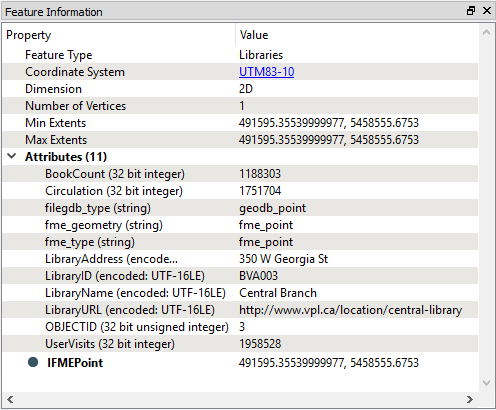
The middle part reports the attributes associated with the feature, including user attributes and format attributes (for example fme_type).
The lower part reports the geometry of the feature. It includes the geometry type and a list of the coordinates that go to make up the feature.
Table View Window
Also available is a window called the Table View.
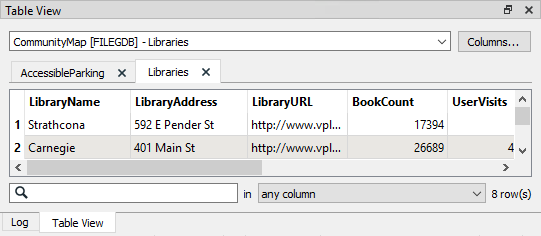
The table view is a way to inspect data in a tabular, spreadsheet-like, layout. Although it does not have the same depth of information as shown by the Information Window, the Table View is particularly useful for inspecting the attribute values of multiple features simultaneously.
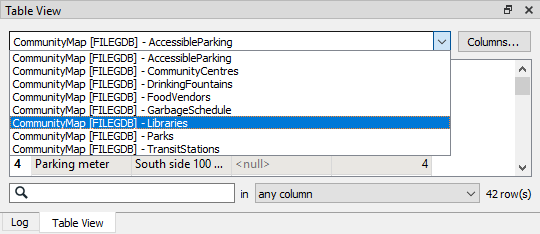
You can switch back and forth between feature types in the Table View by clicking the dropdown menu at the top of Table View.